
Snippy Notes – Chrome Browser plugin
Motivation
I’m one of those people who usually have far too many browser tabs open. I often keep a page open because there’s something I still want to do, read, or remember. A few days later, however, I don’t necessarily remember what that was.
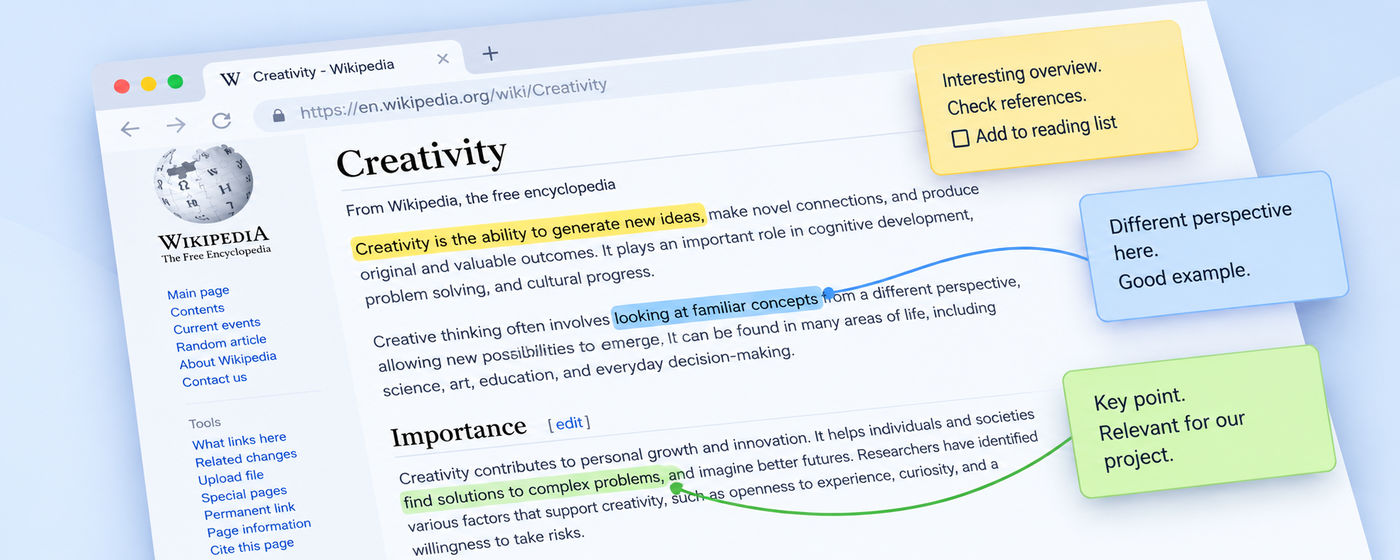
Another thing I’ve often wanted is a simple way to highlight specific passages on a webpage, add a comment, and find them again when I return.
So I started experimenting with my own Chrome extension: Snippy Notes.
Approach
I wanted to keep things as simple as possible. My intention wasn’t to build another comprehensive note-taking system, but a small extension that fits naturally into everyday browsing.
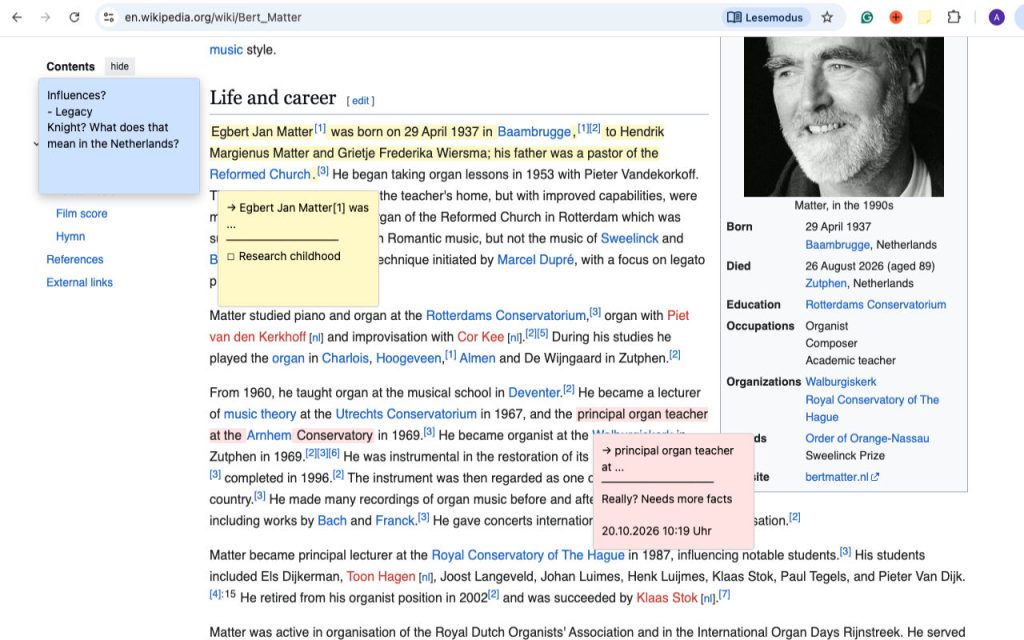
There are two basic ways to use notes: they can stay fixed on the screen independently of the webpage, or scroll along with the page content. Scrolling notes can also be linked to specific text passages.
Selected text is highlighted in the same color as its associated note. One thing I paid particular attention to was making sure these highlights remain visible on both light and dark webpages.
I also deliberately decided against user accounts and cloud storage. Notes are stored locally in the browser.
Development & Learnings
I enjoy exploring new technologies and tools, even when I have no previous experience with them. Before starting this project, I had practically no experience developing Chrome extensions.
What surprised me was how accessible the initial setup turned out to be. At their core, Chrome extensions use familiar web technologies such as JavaScript, HTML, and CSS, along with a manifest.json file that defines permissions, scripts, and other settings.
For me, the real challenges were in the details: How do you reliably link a note to a specific text passage? How do you find that passage again after reloading the page? How do highlights work across multiple HTML elements? And how do you keep notes from losing their positions when scrolling or resizing the browser window?
Publishing through the Chrome Web Store was another new experience. The process involves several steps:
- Developer account: Register with Google and pay the one-time registration fee.
- Manifest V3: Build the extension according to Chrome’s current requirements.
- Permissions: Request only the necessary permissions and explain why they are needed.
- Privacy: Document how user data is processed and stored, and provide a privacy policy.
- Store listing: Prepare descriptions, icons, screenshots, and promotional images.
- Review: Upload the extension package and submit it for Google’s approval.
My biggest takeaway: A simple idea is often implemented quite quickly. The real work starts with edge cases, reliable data storage, and all the small details that make an application useful in everyday situations. For example: how do you highlight a text on a dark background?
Installation and Usage
Getting started is straightforward:
- Install Snippy Notes from the Chrome Web Store: https://chrome.google.com/webstore/detail/difohghmejpnkbmdaammeddipamkbmck
- Use Chrome’s puzzle-piece Extensions menu to pin the Snippy Notes icon to your browser toolbar.
- Click the Snippy Notes icon to create a new note.
- To link a note to a specific passage, select the text before creating it.
Notes can be moved, resized, and assigned different colors. The right-click menu also allows you to delete notes or switch between scrolling and pinned positioning.
Here you can find the privacy policy
Feedback, please
Snippy Notes is an independent development project of mine under the Melius label. It grew out of a personal need and my curiosity about a technology I hadn’t worked with before.
I’m hopefully continuing to develop the extension step by step, partly because using it keeps giving me new ideas, and hopefully from user ideas. So give it a try and tell me what you think!